Booking settings
Booking Cancellation Requests
The Booking Cancellation settings allow customers to request the cancellation of an existing booking directly from your website.
The booking is not cancelled automatically when the customer submits the request. Instead, a cancellation request is created so it can be reviewed from the WordPress admin area before the booking is actually cancelled.
You can configure this feature from WP Booking System → Settings → Booking.
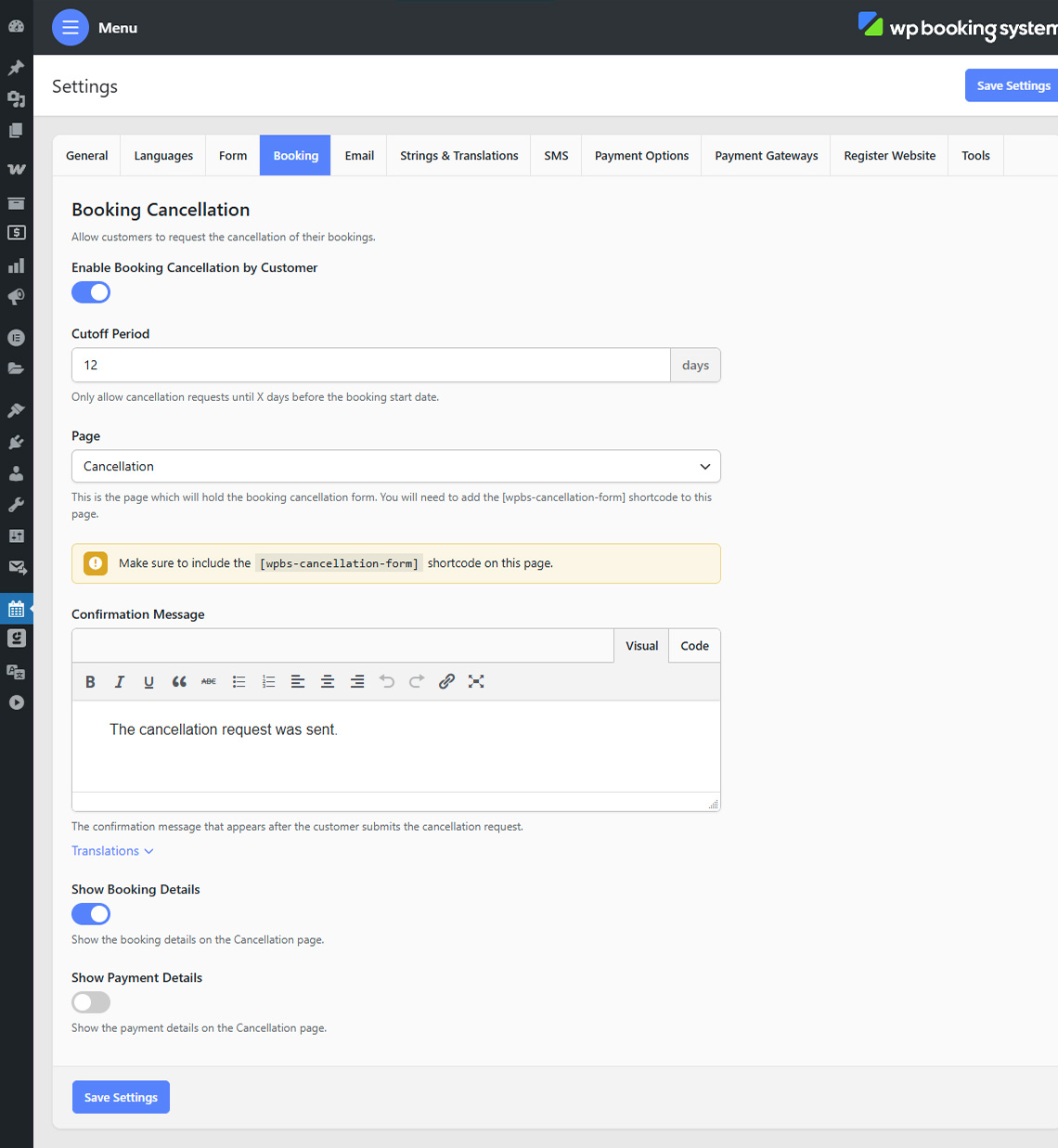
Enable Booking Cancellation by Customer
Enable Booking Cancellation by Customer to allow customers to submit cancellation requests for their bookings. Once enabled, you can configure the cancellation page, the allowed cancellation period and the information displayed to the customer.
Cutoff Period
The Cutoff Period determines how close to the booking start date a customer is allowed to request a cancellation. For example, if you enter 12 days, customers can only submit a cancellation request until 12 days before the booking start date. Once the booking falls inside this period, the cancellation request will no longer be available.
Cancellation Page
Select the WordPress page that will be used for handling cancellation requests. The selected page must contain the following shortcode:
[wpbs-cancellation-form]
The shortcode displays the cancellation interface and processes the booking cancellation link used by the customer. If the shortcode is missing from the selected page, WP Booking System will display a warning in the settings.
Confirmation Message
The Confirmation Message is displayed after the customer successfully submits their cancellation request. If your website uses multiple languages, click Translations to define a different confirmation message for each language.
Show Booking Details
Enable Show Booking Details to display information about the booking on the cancellation page. This helps customers verify that they are cancelling the correct reservation before submitting the request.
Show Payment Details
Enable Show Payment Details to also display the payment information associated with the booking on the cancellation page. This option can be useful when the customer needs to identify the transaction or review the amount paid before requesting the cancellation.
Adding the Cancellation Link to an Email
Customers need a cancellation link that points to the cancellation page and identifies their booking. The cancellation link can be added to the appropriate booking email using the cancellation link dynamic tag available in the email editor. When the customer follows the link, they are taken to the configured cancellation page where they can review the booking details and submit the request.
What Happens After a Cancellation Request Is Submitted
Submitting a cancellation request does not immediately cancel the booking. The request is sent to the website administrator and can be reviewed from the WordPress admin area. The administrator can then decide whether to approve the cancellation. If the request is approved, the booking can be changed to the Cancelled status. If cancellation invoices are enabled, a cancellation invoice can also be generated when the booking is cancelled.
Note: Cancelling a booking does not automatically refund an online payment. Any required refund must be processed separately through the payment provider.