Invoice settings
This tab is visible only if you have the Invoices add-on installed.
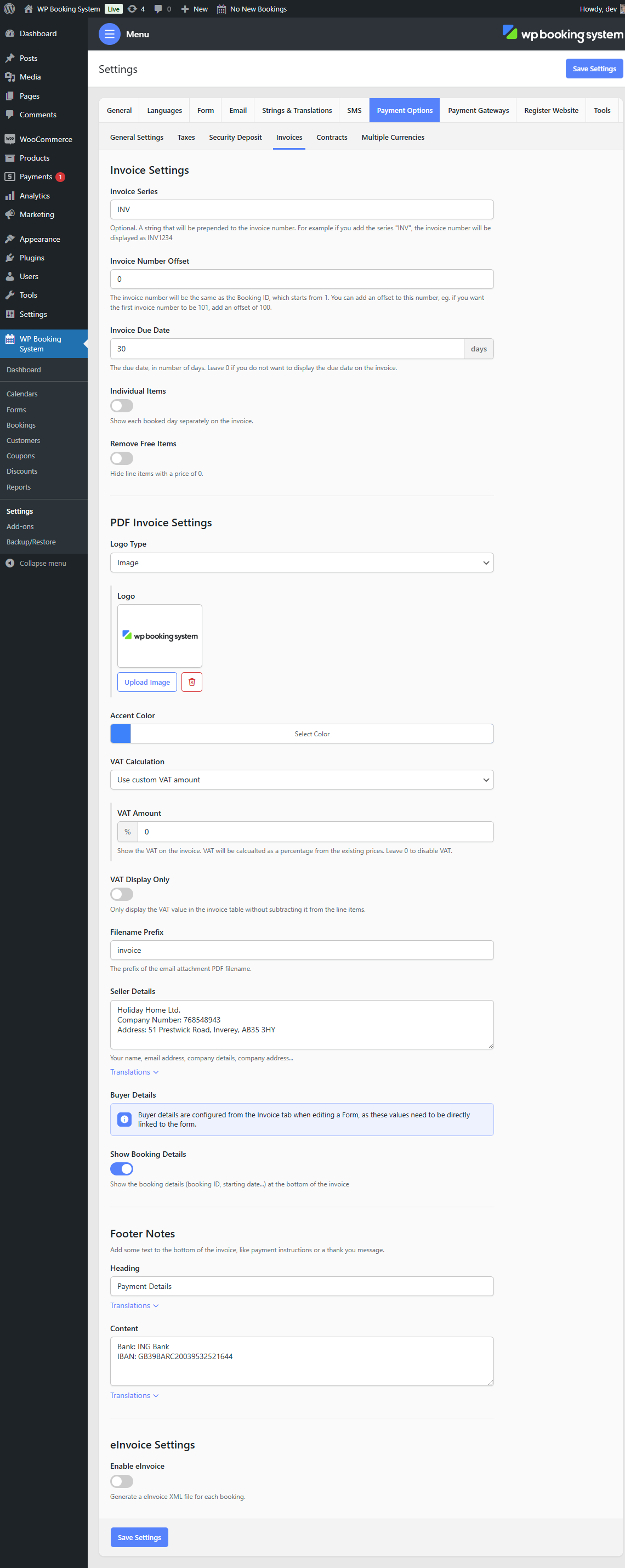
| Logo Type | The type of the logo that will be displayed on the invoice. Can be an image or a text. |
| Logo | The image logo. Appears if Logo Type is set to Image |
| Logo – Heading | A heading that appears as a logo on the top of the invoice. Appears if Logo Type is set to Text |
| Logo – Subheading | A subheading that appears as a logo on the top of the invoice. Appears if Logo Type is set to Text |
| Accent color | The color that will be used to highlight certain elements on the invoice |
| Invoice Series | Optional. A string that will be prepended to the invoice number. For example, if you add the series “INV”, the invoice number will be displayed as INV1234 |
| Invoice Number Offset | The invoice number will be the same as the Booking ID, which starts from 1. You can add an offset to this number, eg. if you want the first invoice number to be 101, add an offset of 100. |
| Invoice Due Date | The due date, in the number of days. Leave 0 if you do not want to display the due date on the invoice. |
| VAT Calculation | Configure how the VAT on the invoice should be calculated. If you have VAT enabled in your Payment → Taxes page, you should use the “Default Payment Settings” option. If you don’t have VAT enabled or want to use a different VAT amount, you can select the “Custom VAT amount” option. |
| VAT | Display VAT prices on your invoice. This will deduct the VAT percentage from all the invoice items and display it below the prices table. |
| VAT Display Only | Enabling this will not deduct the VAT from your current prices, but will only display the included VAT amount below the prices table. |
| Filename prefix | The filename prefix is used when an invoice is attached to emails. |
| Seller details | Your company’s information or your personal details. |
| Buyer details | Buyer details are configured from Form → Form Options → Invoice Settings. |
| Footer Notes | You can add some text to the bottom of the invoice, like payment instructions or a thank you message. |
| Show booking details | Displays booking details in the footer of the invoice. |
| Individual items | Splits the calendar price into daily elements showing the price for each day individually. |
| Remove free items | Hides free items (with the price 0) from the invoice. |
More information about the invoice add-on can be found on the Invoice Add-on page.
eInvoice
eInvoice is the electronic exchange of an invoice document between a supplier and a buyer. An eInvoice is an invoice that has been issued, transmitted and received in a structured data format which allows for its automatic and electronic processing, as defined in Directive 2014/55/EU.
If the eInvoice option is active, an eInvoice compliant with EN 16931 will be generated for each booking.